Fix e-file rejects fast
Every morning, WebRun opens Drake Tax and checks for any e-file submissions that were rejected, posts an instant Slack alert for each rejection with the error code and client details, and drafts a clear client notice in Gmail for the preparer to review and send once the issue is identified.
- No credit card
- Under $0.01 per run
- Cancel anytime
How do I get instant alerts for Drake Tax e-file rejections?
WebRun checks Drake Tax every morning for rejected e-file submissions, posts an instant Slack alert with the rejection code and a plain-English explanation for each one, and drafts a client notice in Gmail for the preparer to review before sending. Rejects are visible and actioned the same morning they appear.
- Every rejection is flagged in Slack the same morning with a plain-English error explanation
- Client notices are drafted and ready so preparers respond fast without writing from scratch
- Repeated rejects are tracked so chronic issues are visible and escalated
Built for CPA firms · tax preparers · enrolled agents · Drake Tax users
What does WebRun do on every run?
The exact actions WebRun takes, in order - in plain language, so you can adjust anything.
-
WebRun signs in and gets to work
Opens
www.drakesoftware.comin a real browser with your saved login - no setup, no API keys. -
1
Drake Tax - find rejected e-file submissions
drakesoftware.com
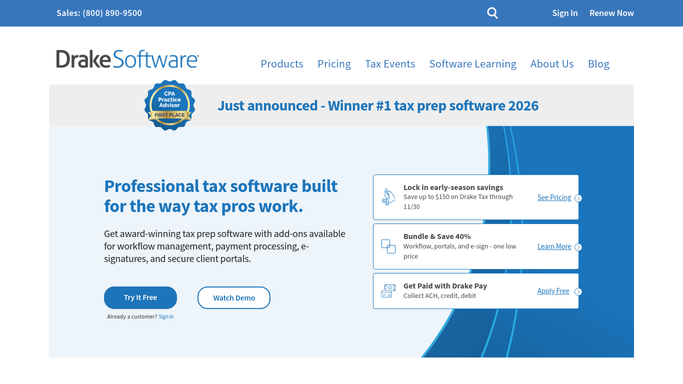
WebRun opens Drake Tax to find rejected e-file submissions. - Open Drake Tax and navigate to the e-file manager or transmission history
- Filter to submissions with a rejected or error status
- Capture the client name, return type, rejection code, rejection reason, and transmission date
- Note any rejects that have been open for more than two days as urgent
Done when Every rejected e-file is listed with its client, error code, and rejection reason.
-
2
Slack - alert the preparer immediately
slack.com How to Automate Slack

WebRun opens Slack to alert the preparer immediately. - Post an alert for each rejected return to the preparer's Slack channel
- Include the client name, return type, rejection code, and a plain-English explanation of the error
- Flag rejects that have been open more than two days as high priority
Done when The preparer has a Slack alert for every current e-file rejection with error details.
-
3
Gmail - draft a client notice for review
gmail.com How to Automate Gmail

WebRun opens Gmail to draft a client notice for review. - For each rejection, draft a client-facing notice in Gmail explaining there was a submission issue and that the firm is working to correct it
- Do not reveal the technical rejection code to the client in the draft
- Leave every draft unsent for the preparer to review and personalize before sending
Done when A Gmail draft exists for every rejected e-file, ready for the preparer's review before sending.
How is each run configured?
Secure by default
Connect once, stays signed in
WebRun signs in once and keeps each session in a persistent environment, so every run picks up right where it left off.
Every action is checked against this policy before it runs.
Questions, answered
Will it email the client about the rejection automatically?
No. WebRun drafts the client notice in Gmail and leaves it unsent. The preparer reviews the draft, personalizes it if needed, and decides when to send. No client email goes out without the preparer's approval.
Does it explain the rejection code in plain English?
Yes. For common rejection codes like duplicate SSN or missing PIN, WebRun adds a plain-English explanation in the Slack alert so the preparer immediately understands the issue and can start fixing it.
What if the same return was rejected more than once?
WebRun deduplicates by return: if a return was already alerted, it tracks the prior alert date and marks repeated rejects as follow-ups rather than new alerts, so the preparer knows it is a recurring issue.
Related templates
Put this on autopilot.
Turn it on in minutes - or have our team set it up for you.