Recover failed autopay charges without manual chasing
Every morning, WebRun opens storEDGE, finds any autopay charges that failed since the last run, logs each one to a recovery Google Sheet, and drafts a payment-update request in Gmail for each affected tenant. No charge is retried and no email is sent until a staff member approves.
- No credit card
- Under $0.01 per run
- Cancel anytime
How do I track and follow up on failed autopay charges at my storage facility?
WebRun checks storEDGE every morning for failed autopay charges, logs each one to a Google Sheet recovery list with the failure reason, and drafts a courteous payment-update email in Gmail for every affected tenant. No charge is retried and no email is sent until a staff member reviews and approves each action.
- Failed autopay charges are caught and logged every morning without manual checking
- Staff spend minutes approving notices instead of hours hunting failed transactions
- No charge is retried and no tenant is emailed without explicit staff sign-off
Built for self-storage operators · facility managers · storage billing staff
What does WebRun do on every run?
The exact actions WebRun takes, in order - in plain language, so you can adjust anything.
-
WebRun signs in and gets to work
Opens
manage.storedgefms.comin a real browser with your saved login - no setup, no API keys. -
1
storEDGE - identify failed autopay charges
storedgefms.com
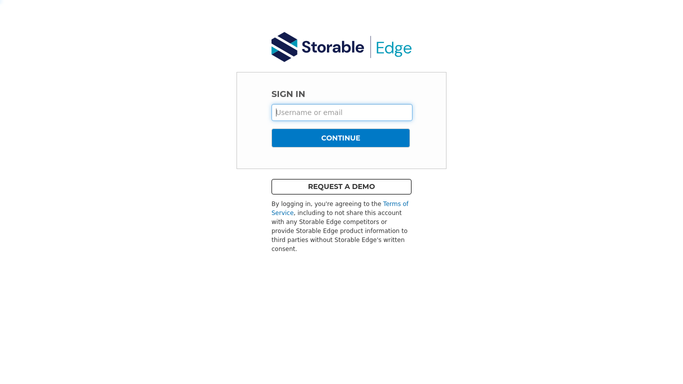
WebRun opens storEDGE to identify failed autopay charges. - Open storEDGE and check the payment processing or billing section for failed transactions
- Identify all autopay charges that failed since the previous run
- Capture tenant name, unit number, failed amount, failure date, and failure reason for each
Done when Every failed autopay charge is captured with its tenant details and failure reason.
-
2
Google Sheets - log failed payments to recovery sheet
google.com How to Automate Google Sheets

WebRun opens Google Sheets to log failed payments to recovery sheet. - Open the failed-payment recovery spreadsheet
- Append a row for each failed charge with unit, tenant, amount, failure date, and reason
- Mark tenants who have had a prior failed charge in the last 30 days
- Add a status column for staff to record follow-up actions
Done when All failed payments are logged in the recovery sheet with a clear status column for staff.
-
3
Gmail - draft payment-update notices for approval
gmail.com How to Automate Gmail

WebRun opens Gmail to draft payment-update notices for approval. - Draft a courteous payment-update request for each affected tenant
- Include the unit number, failed amount, and a link to update their payment method
- Leave every draft unsent in Gmail Drafts for staff to review before sending
- Never attempt to retry the charge or collect payment automatically
Done when A ready-to-review Gmail draft exists for every tenant with a failed autopay.
How is each run configured?
Secure by default
Connect once, stays signed in
WebRun signs in once and keeps each session in a persistent environment, so every run picks up right where it left off.
Every action is checked against this policy before it runs.
Questions, answered
Will WebRun retry the failed charge automatically?
No. WebRun never retries a payment or initiates any charge. It logs the failure and drafts a notice for staff to review. All payment retry decisions require explicit staff approval.
Will it email the tenant without my approval?
No. Every draft is left unsent in your Gmail Drafts folder. A staff member must review and send each notice before it reaches the tenant.
What if the same tenant has had multiple failed payments?
The recovery sheet flags tenants who have had prior failures in the last 30 days so staff can prioritise follow-up and decide whether a different approach is needed.
Related templates
Put this on autopilot.
Turn it on in minutes - or have our team set it up for you.