Prepare monthly superbills for every client automatically
On the first business day of each month, WebRun opens Healthie, collects completed session records for the prior month, compiles the diagnosis codes, service codes, and fees for each eligible client, drafts a superbill per client, logs every entry to Google Sheets, and queues the superbill emails in Gmail for your review.
- No credit card
- Under $0.01 per run
- Cancel anytime
How do I automatically prepare monthly superbills for nutrition clients?
WebRun opens Healthie on the first business day of each month, collects every completed session from the prior month, compiles diagnosis and CPT codes for each eligible client, and drafts a superbill email per client in Gmail. A Google Sheet tracks each superbill's status, and nothing is sent until you review and approve it.
- Every eligible client receives a complete superbill within days of month end
- No session details fall through the cracks at billing time
- Superbill status is tracked in one Google Sheet from draft to sent
Built for registered dietitians · nutrition coaches · private nutrition practices · insurance-billing dietitians
What does WebRun do on every run?
The exact actions WebRun takes, in order - in plain language, so you can adjust anything.
-
WebRun signs in and gets to work
Opens
secure.gethealthie.comin a real browser with your saved login - no setup, no API keys. -
1
Healthie - collect prior-month session records
gethealthie.com How to Automate Healthie
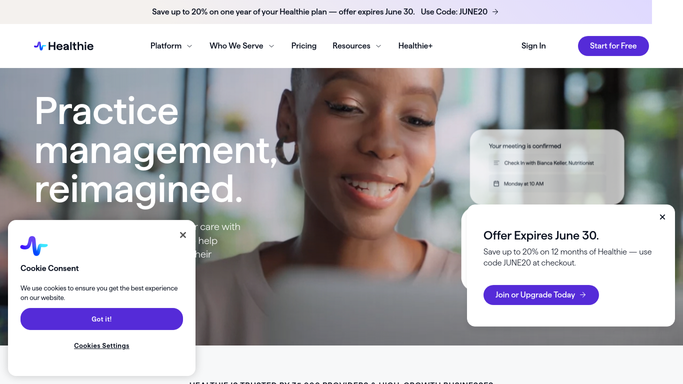
WebRun opens Healthie to collect prior-month session records. - Open Healthie and filter completed appointments to the prior calendar month
- For each client, collect session dates, session types, diagnosis codes, CPT codes, fees charged, and provider details
- Identify only the clients whose account settings indicate they need a superbill
Done when Every eligible client has a complete record of their prior-month sessions ready for superbill compilation.
-
2
Google Sheets - log superbill details for review
google.com How to Automate Google Sheets

WebRun opens Google Sheets to log superbill details for review. - Open the monthly superbill log Google Sheet
- Add one row per client with their session count, total fees, and superbill status
- Mark each row as Draft, Reviewed, or Sent as the process progresses
Done when The superbill log is updated with every eligible client's prior-month totals.
-
3
Gmail - draft superbill delivery emails
gmail.com How to Automate Gmail

WebRun opens Gmail to draft superbill delivery emails. - Draft a superbill delivery email for each eligible client with their compiled session details attached
- Include the client's name, session dates, diagnosis codes, CPT codes, and total fees in each draft
- Save every email as a Gmail draft, unsent, for your clinical review before sending
Done when One drafted superbill email per eligible client sits in Gmail awaiting your review and approval.
How is each run configured?
Secure by default
Connect once, stays signed in
WebRun signs in once and keeps each session in a persistent environment, so every run picks up right where it left off.
Every action is checked against this policy before it runs.
Questions, answered
Will it send superbills to clients without my review?
No. Every superbill email is drafted in Gmail and left completely unsent. A superbill contains clinical and billing details that require your sign-off before any client receives it.
Does it handle diagnosis codes and CPT codes correctly?
WebRun reads the codes already recorded in Healthie for each session. It does not generate or change codes. If a code is missing from the record, that session is flagged in the Google Sheet for your attention.
What if a client had zero sessions in the prior month?
Clients with no completed sessions in the prior month are skipped automatically. Only clients with at least one completed, billable session appear in the superbill drafts.
Related templates
Put this on autopilot.
Turn it on in minutes - or have our team set it up for you.