Draft your newsletter from the week's content
Every Friday, WebRun opens your Notion content log, collects everything published that week - blog posts, social wins, and notable links - writes a newsletter draft in Mailchimp using your template, and pings you in Slack so you know it is ready for a final review.
- No credit card
- Under $0.01 per run
- Cancel anytime
How can I automatically draft my weekly newsletter from the week's content?
Every Friday, WebRun opens your Notion content log, collects everything published that week - blog posts, social wins, and notable links - writes a newsletter draft in Mailchimp using your template, and pings you in Slack when it is ready for a final review before sending.
- A ready-to-review newsletter draft is in Mailchimp every Friday
- No content is manually copy-pasted - WebRun pulls it from Notion automatically
- The draft is never sent without your review and approval
Built for content marketers · email marketing managers · newsletter publishers · marketing teams
What does WebRun do on every run?
The exact actions WebRun takes, in order - in plain language, so you can adjust anything.
-
WebRun signs in and gets to work
Opens
notion.soin a real browser with your saved login - no setup, no API keys. -
1
Notion - gather this week's published content
notion.so How to Automate Notion
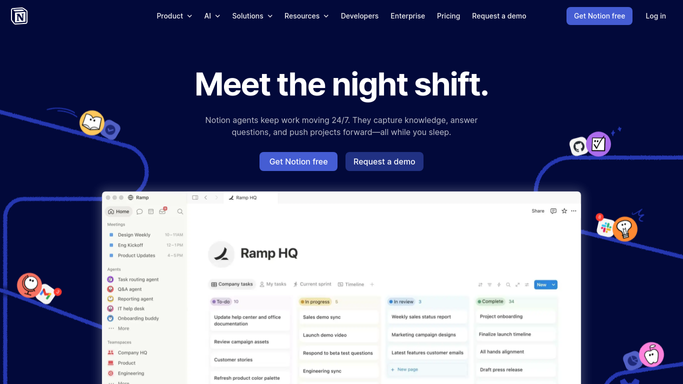
WebRun opens Notion to gather this week's published content. - Open the Content Log database in Notion and filter to items marked Published this week
- Capture each item: title, one-line summary, URL, and content type (blog, social, video)
- Also capture any links or stats flagged as Newsletter-worthy in the Notes field
Done when All published content from the week is captured with titles, summaries, and links.
-
2
Mailchimp - write and save the newsletter draft
mailchimp.com How to Automate Mailchimp
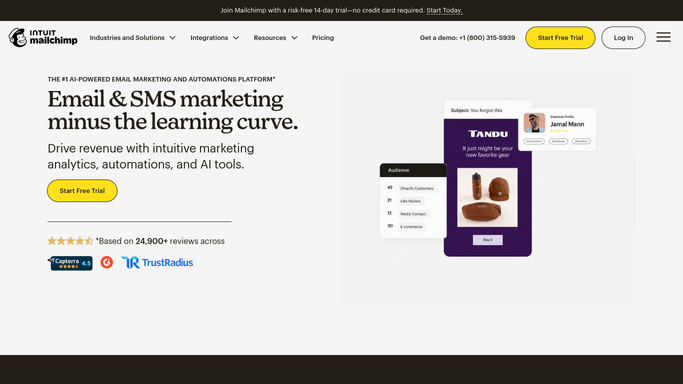
WebRun opens Mailchimp to write and save the newsletter draft. - Open Mailchimp and create a new Regular Campaign using your Weekly Newsletter template
- Populate the intro section with a brief week-in-review paragraph
- Add each content item as a block: headline, one-line teaser, and Read More link
- Save the campaign as a draft - do not schedule or send
Done when A fully populated newsletter draft is saved in Mailchimp awaiting your review.
-
3
Slack - notify you the draft is ready
slack.com How to Automate Slack

WebRun opens Slack to notify you the draft is ready. - Post a Slack message in #marketing letting you know the draft is ready with a direct link to the Mailchimp campaign
Done when You have been notified in Slack that the draft is ready for review.
How is each run configured?
Secure by default
Connect once, stays signed in
WebRun signs in once and keeps each session in a persistent environment, so every run picks up right where it left off.
Every action is checked against this policy before it runs.
Questions, answered
Will it send the newsletter without me reviewing it?
Never. The campaign is saved as a draft in Mailchimp - only you can schedule or send it. Nothing goes to your subscribers without your action.
What if there was not much content published this week?
It will still create a draft with what is there and note in the Slack message that content was light - useful for spotting gaps in your publishing schedule.
Can it use my existing email template and brand voice?
Yes. It works from the Mailchimp template you specify, so your fonts, colours, and layout are already in place. You can also give WebRun a short style guide to match your tone.
Related templates
 Instagram›
Put this on autopilot.
Turn it on in minutes - or have our team set it up for you.