Turn Coggle mind map branches into a real task board
Every Monday, WebRun opens Coggle, finds branches added to the shared mind map that are marked as action items, creates a matching Trello card for each one so the idea has somewhere to be tracked and assigned, and notifies the team on Microsoft Teams that the board's been updated with this week's new items.
- No credit card
- Under $0.01 per run
- Cancel anytime
How do I turn Coggle mind map branches into trackable tasks?
WebRun checks your shared Coggle mind map every Monday for branches marked as action items, creates a matching Trello card for each one so the idea has somewhere to live and be assigned, and notifies the team on Microsoft Teams that the board's updated, so ideas mapped out visually turn into real, trackable tasks.
- Ideas mapped visually turn into assignable tasks automatically
- The team is notified without checking the map itself
- No action item branch goes untracked after the brainstorm
Built for Creative teams · product teams · startups · planning teams
What does WebRun do on every run?
The exact actions WebRun takes, in order - in plain language, so you can adjust anything.
-
WebRun signs in and gets to work
Opens
coggle.itin a real browser with your saved login - no setup, no API keys. -
1
Coggle - find action item branches added to the map
coggle.it

WebRun opens Coggle to find action item branches added to the map. - Open the shared mind map
- Collect branches marked or labeled as action items
- Note the parent branch for context on each
Done when Every new action item branch is captured with its context.
-
2
Trello - create a card for each one
trello.com How to Automate Trello
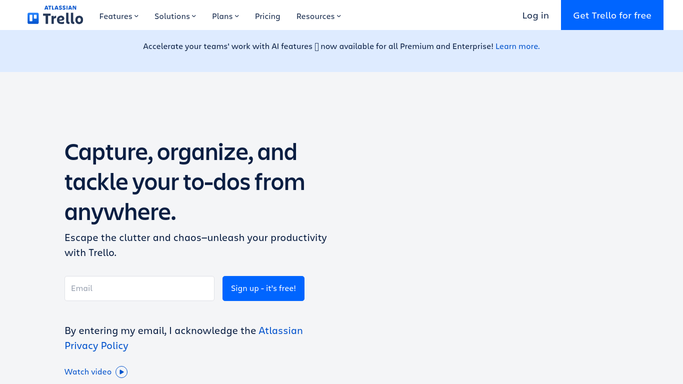
WebRun opens Trello to create a card for each one. - Open the team task board
- Create a card for each new action item with a link back to the map
Done when The board has a card for every new action item branch.
-
3
Microsoft Teams - notify the team the board's updated
microsoft.com How to Automate Microsoft Teams
WebRun opens Microsoft Teams to notify the team the board's updated. - Count how many new cards were added this week
- Notify the team that the board's been updated
Done when The team has been notified the board reflects this week's map.
How is each run configured?
Secure by default
Connect once, stays signed in
WebRun signs in once and keeps each session in a persistent environment, so every run picks up right where it left off.
Every action is checked against this policy before it runs.
Questions, answered
Does WebRun edit the mind map itself?
No. It only reads branches marked as action items. Editing, adding, or removing branches is left entirely to your team in Coggle.
Could the same branch create two cards?
No. WebRun checks Trello for an existing card linked to the same branch before creating a new one.
Are the cards assigned automatically?
No. Cards are created unassigned with the branch's context, and your team assigns them from Trello during planning.
Related templates
Put this on autopilot.
Turn it on in minutes - or have our team set it up for you.