Promote flash days to your past-client list
When you add flash-day details to a Google Sheet, WebRun reads the designs, artists, date, and pricing, drafts a campaign email in Mailchimp segmented to past clients who match the style, and posts a preview to Slack for your approval. No email goes out until you give the green light.
- No credit card
- Under $0.01 per run
- Cancel anytime
How do I automatically promote a tattoo flash day to past clients?
WebRun reads your flash-day details from Google Sheets, drafts a targeted Mailchimp campaign to past clients whose style history matches the featured designs, and posts a preview to Slack for your approval. The email stays as a draft until you review and send it, keeping full editorial control with the studio.
- Flash-day campaigns reach the right past clients without any manual list-building
- The email draft is ready for review minutes after you add the event to the sheet
- No promotional email goes to clients without the studio owner's sign-off
Built for tattoo studios · tattoo artists · studio owners · tattoo event organisers
What does WebRun do on every run?
The exact actions WebRun takes, in order - in plain language, so you can adjust anything.
-
WebRun signs in and gets to work
Opens
sheets.google.comin a real browser with your saved login - no setup, no API keys. -
1
Google Sheets - read flash-day details
google.com How to Automate Google Sheets

WebRun opens Google Sheets to read flash-day details. - Open the flash-day planning sheet in Google Sheets
- Read the event date, participating artists, flash design styles, prices, and any limited-slot count
- Check for any segment notes such as preferred client styles or geographic area to narrow the recipient list
Done when All flash-day details are read from the sheet and the target audience is defined.
-
2
Mailchimp - draft the campaign email
mailchimp.com How to Automate Mailchimp
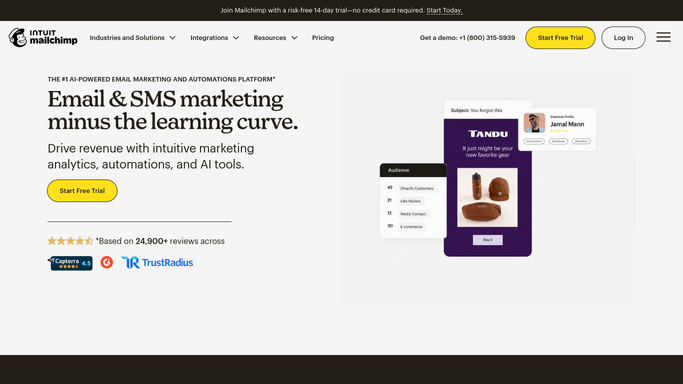
WebRun opens Mailchimp to draft the campaign email. - Open Mailchimp and create a new campaign draft targeting the past-client segment that matches the flash-day styles
- Write the subject line, preview text, and email body featuring the artists, designs, and booking instructions
- Add the flash-day date, pricing, and a call-to-action linking to the booking page
- Save the campaign as a draft but do not send. Leave it for review and approval
Done when A complete campaign draft is saved in Mailchimp, unsent, covering all flash-day details and the correct audience segment.
-
3
Slack - post preview for approval
slack.com How to Automate Slack

WebRun opens Slack to post preview for approval. - Post a Slack message with a summary of the campaign: event date, audience segment size, subject line, and a preview snippet of the email body
- Prompt the studio owner or marketing lead to open Mailchimp, review the draft, and send when satisfied
Done when The team has a Slack preview of the draft campaign and a clear prompt to review and approve in Mailchimp.
How is each run configured?
Secure by default
Connect once, stays signed in
WebRun signs in once and keeps each session in a persistent environment, so every run picks up right where it left off.
Every action is checked against this policy before it runs.
Questions, answered
Will it send the email to clients without my approval?
No. WebRun creates a draft campaign in Mailchimp and posts a preview to Slack, but the email is never sent until you open Mailchimp, review the content, and click Send yourself.
How does it know which past clients to target for a flash day?
WebRun uses the style notes and segment criteria you add to the Google Sheet to filter the Mailchimp audience, targeting clients whose previous bookings or tags match the flash-day designs and artists.
Can it handle flash days with multiple artists and styles?
Yes. You can list multiple artists and design styles in the sheet and WebRun will include all of them in the campaign, organised clearly so clients can see who is participating and what designs are available.
Related templates
Put this on autopilot.
Turn it on in minutes - or have our team set it up for you.