Flag timesheet exceptions and no-call no-shows before payroll closes
Every morning, WebRun opens Avionte's timekeeping module, scans for timesheets with missing entries, unapproved hours, overtime exceptions, or no-call no-show flags from the prior day, posts a categorized exception alert to Slack for the payroll team, and logs each exception to Google Sheets so nothing is overlooked before payroll closes.
- No credit card
- Under $0.01 per run
- Cancel anytime
How do I automatically flag timesheet exceptions and no-shows before staffing agency payroll closes?
Every morning WebRun opens Avionte's timekeeping module, scans for missing timesheets, unapproved hours, overtime exceptions, and no-call no-show flags from the prior day. It posts a categorized digest to Slack with blocking flags for payroll-critical issues and logs every exception to Google Sheets for resolution tracking so payroll closes clean.
- Every timesheet exception from the prior day surfaces before payroll opens, not after close
- Blocking exceptions are flagged so the payroll team prioritizes the most critical issues first
- Google Sheets tracks every exception from open to resolved so nothing falls through the cracks
Built for staffing agency payroll teams · temp agency back-office administrators · workforce solutions payroll managers · staffing firm operations directors
What does WebRun do on every run?
The exact actions WebRun takes, in order - in plain language, so you can adjust anything.
-
WebRun signs in and gets to work
Opens
app.avionte.comin a real browser with your saved login - no setup, no API keys. -
1
Avionte - scan timesheets for exceptions and no-show flags
avionte.com How to Automate Avionte
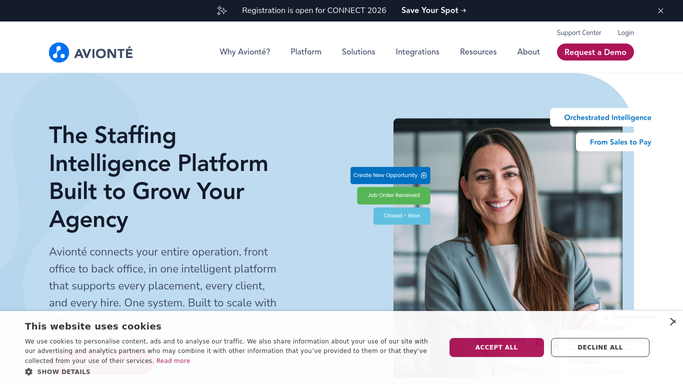
WebRun opens Avionte to scan timesheets for exceptions and no-show flags. - Open Avionte and navigate to the Timekeeping module
- Filter to timesheets from the prior day with status: missing, unapproved, or flagged
- Identify candidates logged as no-call no-show by supervisors or via the mobile talent app
- Capture for each exception: candidate name, client, assignment, exception type, and hours in question
Done when Every timesheet exception and no-show flag from the prior day is captured with full assignment details.
-
2
Slack - post exception alert digest to payroll team
slack.com How to Automate Slack

WebRun opens Slack to post exception alert digest to payroll team. - Post a categorized exception digest to the payroll Slack channel: group by exception type (missing, unapproved, overtime, no-show)
- List each exception with candidate name, client, and hours affected
- Flag any exception that would hold up payroll processing as blocking and mark it urgent
Done when The payroll team has a Slack digest of all timesheet exceptions grouped by type with blocking flags.
-
3
Google Sheets - log exceptions for resolution tracking
google.com How to Automate Google Sheets

WebRun opens Google Sheets to log exceptions for resolution tracking. - Append each exception to the payroll-exceptions sheet: candidate, client, assignment, exception type, date, and resolution status
- Mark newly added rows as Open so the payroll team can update them to Resolved as they work through the list
Done when Every exception is logged in Google Sheets with an Open resolution status for the payroll team to work through.
How is each run configured?
Secure by default
Connect once, stays signed in
WebRun signs in once and keeps each session in a persistent environment, so every run picks up right where it left off.
Every action is checked against this policy before it runs.
Questions, answered
Does it resolve or edit timesheet records automatically?
No. WebRun only reads and flags exceptions. All corrections to timesheet records are made by your payroll team in Avionte. WebRun surfaces the issues, and your team resolves them.
What counts as a blocking exception?
An exception is flagged as blocking if it affects hours that must be approved before the pay cycle closes that day. The definition of blocking is based on your payroll close schedule, which you set during setup.
How does the Google Sheets log prevent exceptions from being overlooked?
Each exception is logged with an Open status when it first appears. The payroll team updates it to Resolved once fixed. Any rows still showing Open at payroll close time can be reviewed in a single sheet view.
Related templates
Put this on autopilot.
Turn it on in minutes - or have our team set it up for you.