Route every new pressure washing lead into a booked job
The moment a new lead lands in Workiz, WebRun reads the job type, service area, and requested date, finds the nearest open crew slot in Google Calendar, assigns the job in Workiz, and posts a summary to your Slack dispatch channel so your team sees it instantly.
- No credit card
- Under $0.01 per run
- Cancel anytime
How do I automatically route new pressure washing leads into scheduled jobs?
WebRun monitors Workiz for every new inbound lead and, within minutes, reads the job type and service address, finds the earliest open crew slot in Google Calendar, assigns the job in Workiz, and posts the booking details to your Slack dispatch channel so your team can act immediately.
- Every new lead is assigned to a crew slot within minutes, not hours
- Dispatchers see each new job in Slack without checking Workiz manually
- No leads sit unrouted overnight
Built for pressure washing companies · exterior cleaning services · field service dispatchers
What does WebRun do on every run?
The exact actions WebRun takes, in order - in plain language, so you can adjust anything.
-
WebRun signs in and gets to work
Opens
app.workiz.comin a real browser with your saved login - no setup, no API keys. -
1
Workiz - capture new lead details
workiz.com How to Automate Workiz
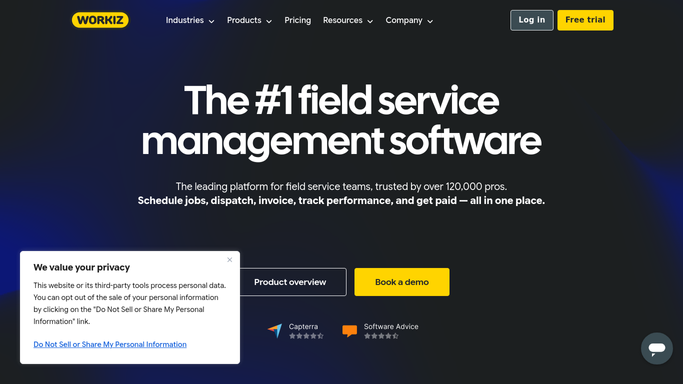
WebRun opens Workiz to capture new lead details. - Open Workiz and navigate to the Leads list
- Read the new lead: client name, address, job type, and requested date
- Check the assigned service area against your crew zones
Done when New lead details are captured and the correct service zone is identified.
-
2
Google Calendar - find nearest open crew slot
calendar.google.com How to Automate Google Calendar
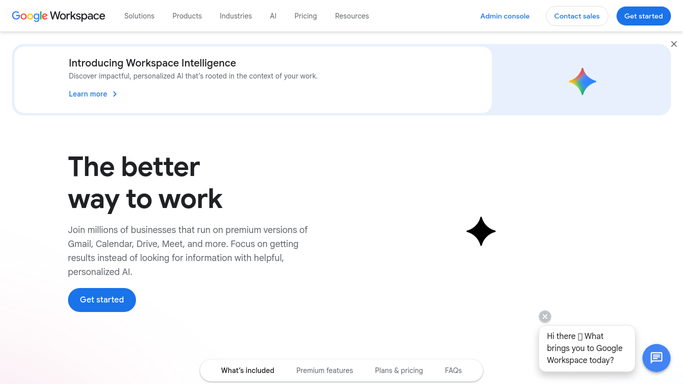
WebRun opens Google Calendar to find nearest open crew slot. - Open the crew calendar for the matching service zone
- Find the earliest available slot that fits the job duration
- Reserve that slot for the incoming job
Done when An open crew slot is confirmed and reserved in Google Calendar.
-
3
Slack - post job assignment to dispatch channel
slack.com How to Automate Slack

WebRun opens Slack to post job assignment to dispatch channel. - Post a job card to the dispatch Slack channel with client name, address, job type, and assigned time slot
- Include a direct link to the Workiz job record
- Tag the assigned crew member so they see it immediately
Done when Dispatch team has the new job card in Slack with all booking details.
How is each run configured?
Secure by default
Connect once, stays signed in
WebRun signs in once and keeps each session in a persistent environment, so every run picks up right where it left off.
Every action is checked against this policy before it runs.
Questions, answered
Will it send a confirmation to the customer automatically?
No. WebRun posts the assignment internally to Slack for your team to review. Any customer-facing confirmation is drafted and queued for a human to approve before it is sent.
What if no crew slot is available on the requested date?
WebRun finds the next nearest open slot and flags the gap in the Slack card so a dispatcher can call the customer and confirm the alternative date.
Does it work with multiple service zones or crews?
Yes. WebRun reads the service address and matches it to the correct zone calendar in Google Calendar, keeping each crew's schedule separate.
Related templates
Put this on autopilot.
Turn it on in minutes - or have our team set it up for you.