Onboard a new store to ShipStation in a single run
When you add a new store to ShipStation, WebRun opens the account, navigates to Store Setup, walks through connecting the new sales channel, verifies that test or live orders are flowing through, applies your default shipping presets to the new store, and posts a completed onboarding checklist to Airtable and Slack so your ops team has a clear record of what was configured.
- No credit card
- Under $0.01 per run
- Cancel anytime
How do I automatically onboard a new store to ShipStation with default shipping presets?
WebRun connects a new sales channel store to ShipStation, applies your default carrier presets and automation rules, verifies that orders are flowing through, and posts a completed onboarding checklist to Airtable and Slack. Your ops team gets a clear confirmation record and a list of any remaining manual steps in one run.
- New store connected, presets applied, and test order verified in a single automated run
- Onboarding checklist logged in Airtable for ops audit trail
- Any remaining manual steps flagged in Slack so nothing slips through
Built for e-commerce operations teams · ShipStation account managers · multi-channel retailers adding new stores · agency teams managing client ShipStation accounts
What does WebRun do on every run?
The exact actions WebRun takes, in order - in plain language, so you can adjust anything.
-
WebRun signs in and gets to work
Opens
ship.shipstation.comin a real browser with your saved login - no setup, no API keys. -
1
ShipStation - connect new store, apply shipping presets, verify order flow
shipstation.com How to Automate ShipStation
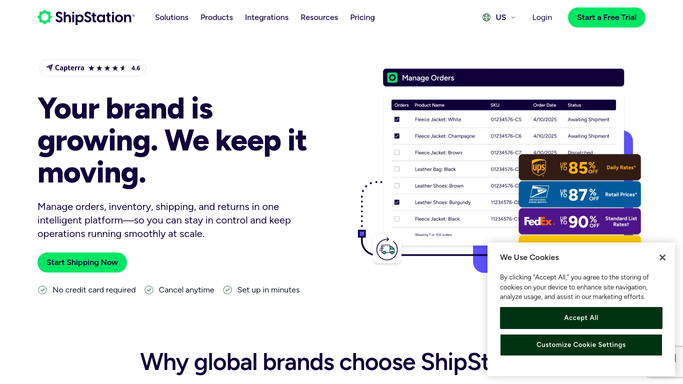
WebRun opens ShipStation to connect new store, apply shipping presets, verify order flow. - Open ShipStation and navigate to Account Settings, then Selling Channels, then Connect a Store
- Select the marketplace or platform being connected and enter the API credentials or OAuth flow provided by the ops team
- Confirm the integration is active and pull a test order to verify order import is working
- Apply the standard shipping presets: default carrier, service level, package type, and automation rules from your ShipStation template store
- Run a quick validation that the new store appears in the Stores list with Active status
Done when New store is connected in ShipStation, default presets applied, and at least one test order visible.
-
2
Airtable - log completed onboarding checklist for the new store
airtable.com How to Automate Airtable

WebRun opens Airtable to log completed onboarding checklist for the new store. - Create a new record in the Store Onboarding tracker Airtable base
- Mark each checklist item as complete: connected, preset applied, test order received, and validated
- Record the store name, platform, connection date, and the ShipStation store ID
Done when Onboarding checklist record in Airtable is complete with all steps marked and store ID logged.
-
3
Slack - post setup confirmation to ops channel
slack.com How to Automate Slack

WebRun opens Slack to post setup confirmation to ops channel. - Post a setup confirmation to the ops Slack channel: store name, platform, and a link to the Airtable record
- Note any manual steps the ops team still needs to complete, such as setting a custom packing slip template
Done when Ops team has setup confirmation and the Airtable checklist link in Slack.
How is each run configured?
Secure by default
Connect once, stays signed in
WebRun signs in once and keeps each session in a persistent environment, so every run picks up right where it left off.
Every action is checked against this policy before it runs.
Questions, answered
Can it connect any sales channel supported by ShipStation?
It can connect any channel in ShipStation's 400-plus integration list. You provide the API credentials or complete the OAuth flow and WebRun handles the navigation and configuration steps within ShipStation.
Will it set up carrier accounts for the new store?
WebRun applies your existing ShipStation carrier accounts and presets to the new store. Adding a brand-new carrier account requires a human to enter billing information and is not automated.
What if the integration fails to connect?
If ShipStation returns an error during the connection step, WebRun logs the error to Airtable, marks the record as Needs Attention, and posts the error detail to Slack so your team can investigate.
Related templates
Put this on autopilot.
Turn it on in minutes - or have our team set it up for you.