Audit carrier accessorial charges against your actual container milestones
When you upload a carrier invoice or paste in accessorial line items, WebRun cross-references each charge against the actual container milestones in Terminal49, flags line items that do not match the shipment record, logs the discrepancies to a Google Sheets audit register, and posts a summary of disputed charges to Slack.
- No credit card
- Under $0.01 per run
- Cancel anytime
How do I automatically audit ocean carrier accessorial charges against real container milestones?
WebRun cross-references every accessorial line item on a carrier invoice against verified container milestones in Terminal49, flagging charges billed for periods when the container was not in that phase. Discrepancies are logged in a Google Sheets audit register with disputed amounts calculated, and a Slack summary shows total potential recovery so your team can file disputes with solid data.
- Overbilled accessorial charges are flagged automatically with Terminal49 milestone data as evidence, not just suspicion
- Finance team enters dispute negotiations with a documented audit log rather than relying on memory
- Total potential recovery is calculated in one Slack message so management can decide which disputes to pursue
Built for ocean freight importers · logistics finance managers · freight cost controllers · supply chain ops teams
What does WebRun do on every run?
The exact actions WebRun takes, in order - in plain language, so you can adjust anything.
-
WebRun signs in and gets to work
Opens
app.terminal49.comin a real browser with your saved login - no setup, no API keys. -
1
Terminal49 - pull actual milestones for each container on the invoice
terminal49.com How to Automate Terminal49
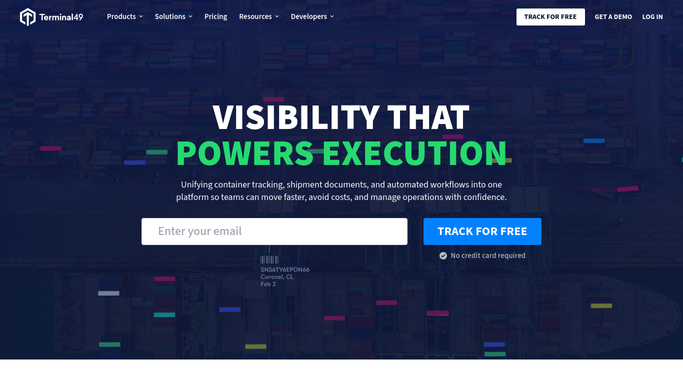
WebRun opens Terminal49 to pull actual milestones for each container on the invoice. - Open Terminal49 and look up each container number or B/L from the carrier invoice
- Retrieve the actual milestones: vessel arrival date, discharge date, available date, full-out date, and empty-returned date
- Note the terminal-reported last free day and any holds that were present, as these are the ground-truth records for accessorial charge validation
Done when Actual milestone dates are captured from Terminal49 for every container on the invoice.
-
2
Google Sheets - log accessorial charge audit results and discrepancies
google.com How to Automate Google Sheets

WebRun opens Google Sheets to log accessorial charge audit results and discrepancies. - Open the Accessorial Charge Audit sheet
- For each invoice line item, record the charge type, billed amount, billed date range, and the corresponding Terminal49 milestone
- Flag line items where the billed date range does not match the milestone record: for example, demurrage billed before the available date, or per diem billed after the empty-returned date
- Calculate the disputed amount for each flagged line and sum the total potential recovery
Done when Every invoice line item is matched to a Terminal49 milestone and discrepant charges are flagged with disputed amounts.
-
3
Slack - post dispute summary with potential savings estimate
slack.com How to Automate Slack

WebRun opens Slack to post dispute summary with potential savings estimate. - Post an audit summary to the freight finance Slack channel
- Include the carrier name, invoice total, number of line items audited, number of discrepancies found, and total disputed amount
- List the top discrepancies by dollar value with a brief explanation of why each is disputed
- Link to the full Google Sheets audit register for the dispute documentation
Done when The freight finance Slack channel has the audit summary with disputed amount and a link to the full discrepancy log.
How is each run configured?
Secure by default
Connect once, stays signed in
WebRun signs in once and keeps each session in a persistent environment, so every run picks up right where it left off.
Every action is checked against this policy before it runs.
Questions, answered
Will it dispute charges with the carrier automatically?
No. WebRun produces the audit log and the Slack summary for your team to review. All formal dispute letters, carrier communications, and credit requests are submitted by your team using the audit log as evidence.
Which accessorial charges can it audit?
It can audit any charge tied to a container milestone date: demurrage, detention, per diem, chassis, reefer monitoring, and late gate fees. Charges with no milestone tie-in, such as fuel surcharges, are logged but not automatically flagged.
What if Terminal49 does not have data for a particular container?
Containers not found in Terminal49 are flagged in the audit sheet as unverified so you know they need manual review. The audit does not automatically approve or deny charges for unverified containers.
Related templates
Put this on autopilot.
Turn it on in minutes - or have our team set it up for you.